The device page
The device page is the richest screen in LongLife: it brings together everything the agent reports about a machine, organized into sections. This page explains, section by section, what you see, how to read it, and what action to take.
Opening a device page
From the fleet list, click a device. You land on its page, whose URL contains the device identifier (handy for sharing a direct link).
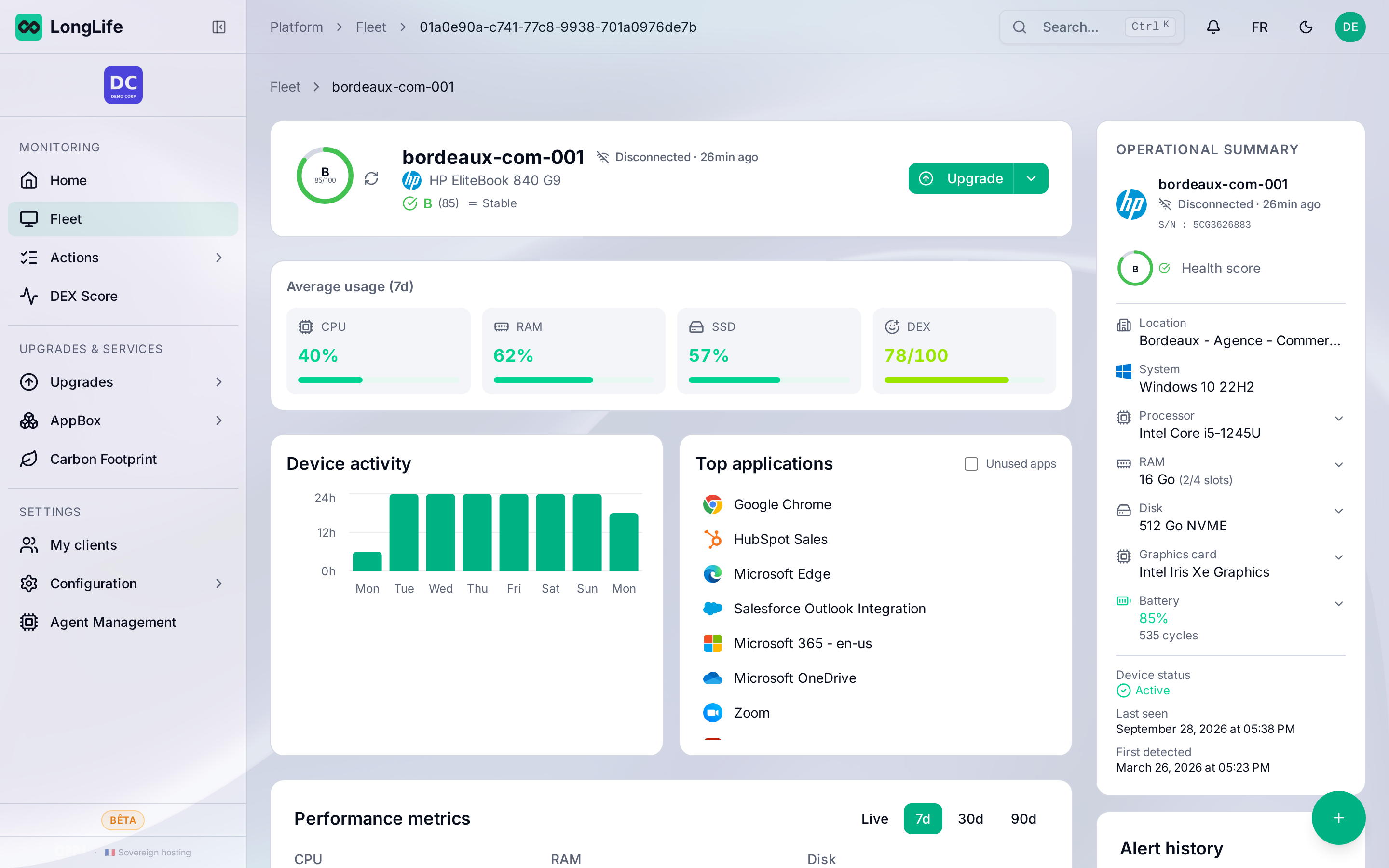
1. Header: device identity
At the top, the header identifies the machine:
- Device name (hostname) and main user;
- Manufacturer, model and serial number;
- attachment: organization and site.
This lets you tie a device to a person and a location. The serial number is useful for warranty and manufacturer support.
2. Average usage (7 days)
Four summary indicators recap the past week:
| Indicator | What it measures | How to read it |
|---|---|---|
| CPU | Average processor load | Consistently high = struggling device, possibly under-sized |
| RAM | Average memory usage | Often high = the #1 cause of slowness; adding RAM is often the best lever |
| SSD | Disk usage | Near full = risk of slowness and freezes; to handle |
| DEX | Experience score (out of 100) | Low = the user experiences friction, even if the hardware looks fine |
A color code (green / orange / red) places each value at a glance. Details are in Resource usage and DEX.

3. Device activity
A chart shows the device's active time per day over the period. It helps tell a genuinely used device from a dormant one, and spot atypical usage (night, weekend activity). A very low-activity device may be a candidate for reassignment or return.
4. Hardware health
This area groups the state of the components reported by the agent:
- Disk (SMART): disk health indicators (reallocations, power-on hours, wear). A degrading disk is a strong signal of an upcoming failure: back it up and replace it as a priority.
- Battery (laptops): remaining capacity relative to original, charge cycles. A worn battery explains disappointing runtime and may justify a simple replacement rather than a new device.
- Temperature: to spot a device running abnormally hot (dust, ventilation).

5. Lifecycle and age
LongLife estimates the device's age and its position in its lifecycle:
- Processor: model, generation and estimated year. A good marker of the machine's real age.
- Estimated age of the device, cross-checked with the BIOS date and the OS installation.
- OS support: Windows version and end-of-support date. A device whose OS nears end of support is a point of attention (security, compliance).
- Virtual machine: whether the device is a VM.
These elements feed the LongLife score and the extend-or-renew decisions.
6. Display and peripherals
- GPU and displays: graphics card, connected monitors, docking station, resolution.
- Peripherals: USB drives, Bluetooth, printers, audio, webcams detected.
Useful for a device audit, understanding a multi-monitor setup, or diagnosing a peripheral.
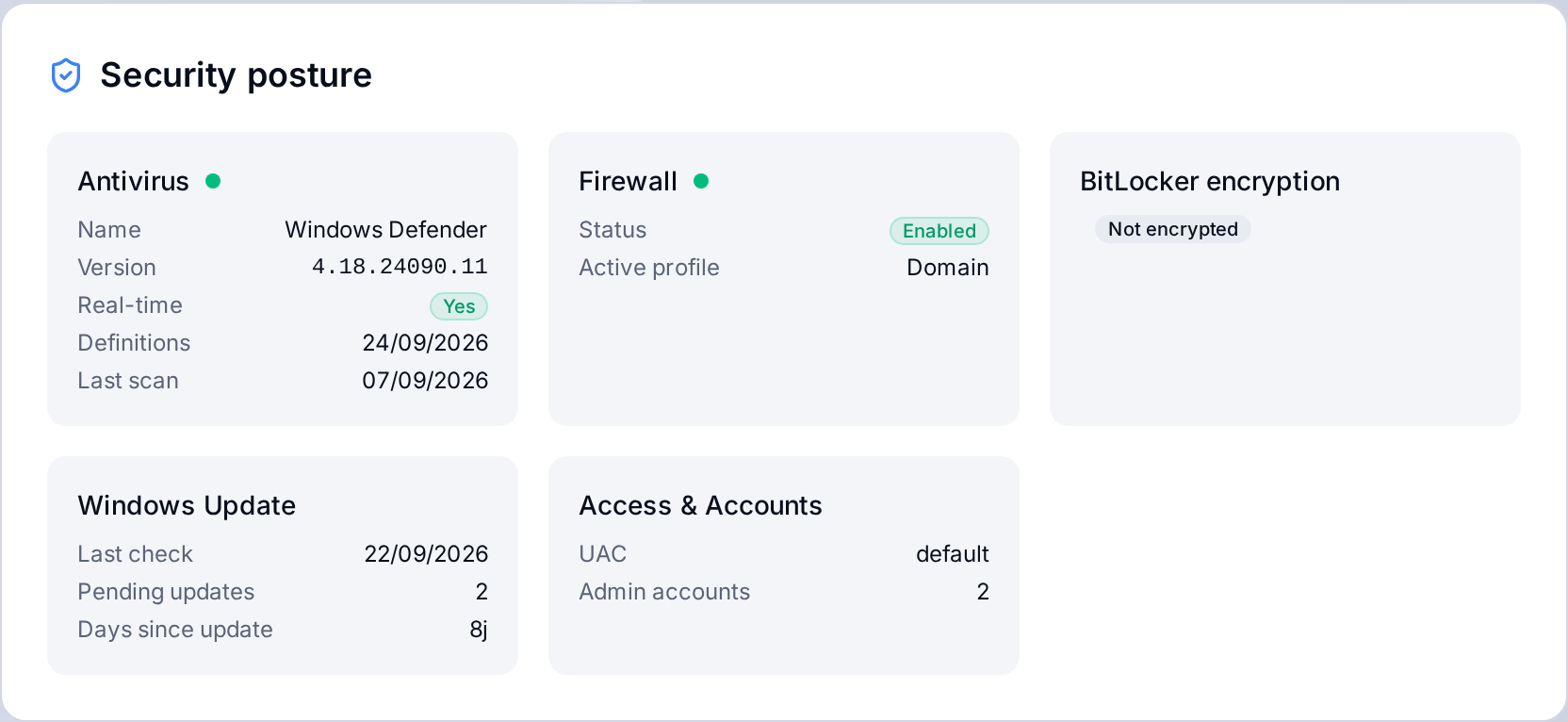
7. Security posture
The agent reports the device's protections: antivirus, firewall, disk encryption (BitLocker), account control (UAC). An incomplete posture (for example encryption disabled) is a risk to fix, and may surface as an incident (see Incidents and alerts).
8. Software inventory and usage
The page lists the installed applications, with for each:
- the publisher and the version;
- the usage status: actually used or installed only (not launched recently).
You can filter on unused applications: these are the best candidates for uninstallation or license reclaim. The device may also report detected SaaS services (from traffic), useful to spot undeclared usage. Details and savings are covered in AppBox.

9. Impact and costs
The page positions the device environmentally (footprint, CO2 potentially avoided by extending it) and on cost. See Environmental impact.
10. Acting on the device
From the page you can trigger actions:
- follow the recommendations (optimize, upgrade, replace);
- launch a remote intervention;
- qualify the device (renewal decision);
- consider an upgrade (for example RAM or disk).
Details are in Interventions and actions.
The device page answers three questions: is this device doing well (health, DEX, security), why (resources, age, hardware), and what to do (recommendations, interventions).